Welcome to the Precision Computing Arts / Fastwebdev blog. We use this blog to post interesting news about our Sitebuilder web hosting and content management system (CMS). As with other blogging systems, blog articles from our system are indexed in Google and other search engines within a week or two.
(Customers can set up and maintain similar blogs on any Sitebuilder websites that we host.)
System Update: 4.19 - [9/8/2011]
Ecommerce account holders (merchants) can set up an affiliate program. This feature enables merchants to set up a commission rate to be earned by the affiliates and banners for the affiliates to display on their websites. Orders created by visitors who reach the site via these banners will be tracked and an affiliate payment will be computed. Merchants can keep track of affiliate payments via their website admin.
Posted by: Precision Computing Arts AT 05:51 am
| Permalink
| Email
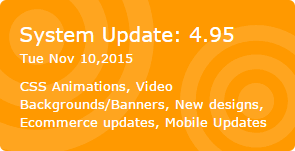
Sitebuilder 4.91 is available now! It offers many new features that you'll want to check out, including these areas of the system: Design, Responsive Mobile/iPad, Groupboxes, Form Builder, Google Maps, Social Networking (Pinterest), One Page Checkout (Coming Soon), Upload Field on Product, Product Category Sort, Google Trusted Store, Miscellaneous E-Commerce Updates, and Payment Gateway.
As with all automatic updates, there is no extra charge for this upgrade. As with all automatic updates, there is no extra charge for this upgrade. We hope you enjoy all the new changes!
Site Builder (CoolTools) System Update 4.9 is coming soon or is already available (roll-out may take a bit of time to reach all customer websites). This update has some great new features. As with all automatic updates, there is no extra charge for this upgrade.
Site Builder (CoolTools) System Update 4.8 is coming soon or is already available (roll-out may take a bit of time to reach all customer websites). This update has some great new features, emphasizing general usability, blogs, menus, graphics, social networking, e-commerce and other improvements. As with all automatic updates, there is no extra charge for this upgrade.
The 4.6 system update has now been fully deployed to all Site Builder systems. In addition to previously announced features, this update includes:
NEW LAYOUTS
A few new layouts are now available from the design area. To use the new layouts, go to the design area, click "site layout" and then click "modify layout". The layouts are listed in the new layouts section.
Many of the layouts take advantage of the latest HTML5/css design features such as rounded corners, transparency, transforms (rotations) and shadows. In older browsers, the site will not display with the enhanced features. Example: The rounded menu buttons will appear square.
LOGOUT
The logout link is now available by clicking the gear icon to the right of the help tab. When the gear is clicked, a menu opens with a logout option, which works like the Facebook gear/logout option. Users also can also log out by closing all their browser windows.
PRODUCT IMAGES
To clarify the product image upload process, the product images area is now easier and more flexible. To access the upload options from the previous system, simply click the "advanced upload" link on the right side of the ecommerce product images area (all the same image sizing features are available).
FUTURE SYSTEM UPDATES - COMING SOON
The next update will include more enhanced layouts, new design features, enhanced mobile support and more dynamic image generation.
Automatic responsive mobile site:
By default websites will fit on mobile devices. The responsive features will work for most templates. With the automatic mobile responsive sites, you will not need to create a separate mobile site. Images are shrunk and all multi-column layouts become stacked into one long column. A mobile bar added to the top of the mobile site includes a dropdown/slide out menu for mobile site navigation. We are also investigating tablet specific site displays. The option to create a separate dedicated mobile site will still be available for customers who require more than just a generic mobile site.
Auto fit image galleries:
With the auto fit image galleries, you simply upload your gallery images and the images are scaled to fit the width of the page. There is no need to set the size of your images. You only set how many columns you wish to display. The system will fill the page with images based on your settings.
Enhanced image styles:
Using css features, enhanced image styles allow you to choose how you want to display images on your site. Choose from standard styles, rounded corners, circle shapes, box shadows, colored borders and more. These styles can be applied to any image on your site (page images, galleries, and product images).
Image captions:
The image caption styles allow you to create captions that overlay an image with a transparent background.
Posted by: Precision Computing Arts, Inc. AT 03:36 am
| Permalink
| Email
5/21/13: Site Builder (CoolTools) update 4.6 is fully deployed. » Read more.
3/7/13: Site Builder (CoolTools) update 4.6 is available now. This was a BIG update with tons of wonderful new features, emphasizing general usability, graphics, and e-commerce. It includes the following updates and system enhancements.
Feature Overview
User interface adjustments
Section slider component
Updated text editor
IE 10 multi file upload
Image tools
Footer columns
Simplified design options
Site style configuration
Font styles
Font families/selection
Color
Advanced page background settings
Advanced css
Page editor
In page image tools
Component alignment changes
Misc updates
Ecommerce Updates
Product edit page updates
Product images
Product detail tabs
Dynamic pricing page updates
Product options
Product skus/advanced options
Inventory tracking for options
Inventory import/export
Shipping weight for options
Change product image based on selected options
Color swatch option type
Copy options
Quantity based pricing setup
Shipping integration
To find out your current Site Builder version number, log into your web hosting account and look at the right-hand side of the page for the "System Update" graphic, which shows the update number and installation date, along with a summary of the most recent features (the sample at right illustrates System Update 4.6).
More details are below.
User interface adjustments
Several minor user interface adjustments have been added. These include hover/rollover effects and counts added to the main editor icons. Ex. The admin home page now displays the number of outstanding orders, number of users/customers as well as your default mailing list size.
Section slider component
With the section slider component, you can setup content sections using the page editor. A section menu is displayed on the left side. When a menu button is clicked, the content section associated with the menu button slides into view. Using the page editor you can add any component type into the sections. The section slider works like the tabbed content and accordion components.
Updated text editor
The text editor has been updated. The updated includes many miscellaneous enhancements as well as a new style. The text editor is also more optimized for tablets.
The new format option makes it easier to style your text. Click anywhere in a paragraph and set the paragraph/line style (heading 1, heading 2, heading 3, normal). You do not need to highlight text and select a style.
IE 10 multi file upload
Support has been added for multiple file upload on Internet Explorer 10.
Image tools
The image tools have been updated to provide quicker access to resize functions. Standard image sizes have been setup to help adjust images and keep image sizes consistent throughout your website.
The system automatically detects when uploaded images are too large and gives you the option to adjust the size.
Footer columns
With the new footer columns feature you can setup multiple columns in your site footer area. Create up to 5 columns. Easily add text, images, links and social networking icons. To enable the feature, view your website, click settings and then set the number of footer columns.
Simplified design options
The new design page now displays the most commonly used options. There is a link on the left side of the page for more advanced settings.
Site style configuration
The new site styles area provides an quick preview of how all of your site styles look together. Click on a area of the page to select new style options (font, buttons, links, groupboxes, page titles and more).
Font styles
New title/default font combinations have been added. Go to the design area and click the text/styles option.
Font families/selection
Many new fonts have been added to the system. The new font browser makes it easier to view font previews and make font selections. The new default title option makes it easier to create a consistent look throughout your site. You can set the logo builder, menu, groupboxes and titles to use the same setting. When you update your title style to use a new font, all the other areas are set to use the same options.
Color
The new color area includes preset color schemes to choose from and updated color selection/color scheme generator options.
Advanced page background settings
With the advanced page background settings you can choose customize the positioning and alignment of your main site background image. Choose to have a fixed (non scrollable background) or set the background image to always cover the full screen size.
Advanced css
If you are familiar with web design and style sheets (CSS) it is now even easier to make custom adjustments to your website. To access the custom CSS area, go to the main design page, click the advanced button and then click the advanced css link.
Page editor
Move components in and out of groupboxes, column groups and tabs. To move a component into or out of a page section, edit your page. Click the green box to the right of the component edit bar and then click the "move to" drop down menu. Select where you would like to move the component.
In page image tools
When you move your mouse over an image while editing a page, you can click the image tools icon to open the image tools window. Resize and rotate images.
Component alignment changes
The component alignment option has been moved. To align components, click the small green down arrow box above the component. Then click the alignment option.
Misc updates
Links list component allows you to use the default menu or submenu style
Ecommerce Updates
This update includes many enhancements in the ecommerce area. These enhancement are designed to make it easier to manage products, provide more ecommerce display options and allow better integration with other systems.
Product edit page updates
The main product edit page has been reworked to be more streamlined. The description, short description and text description are now displayed in tabs. This helps make the page shorter and easier to read. For many cases the short and text descriptions are not needed or used. These fields no longer take up extra space on the page.
The edit product list in the store manager now displays your small product image making it easier to manage your products/see your product entries.
Product images
It is now easier to manage your product images. Set the default sizes for the overview and detail images. Your uploaded images will be sized to match your settings. If you want to adjust the image size, just change the settings and the images will automatically be updated to match your settings.
Product detail tabs
If you have a lot of information about a product you can now display the additional information in tabs that are displayed at the bottom of the product detail page. Create up to 5 custom tabs with additional information about your product.
Dynamic pricing page updates
The pricing page will now update the product price to reflect the price for the currently selected set of options and addons.
Product options
The product option features has been reworked to provide for more flexibility. All of the same option types are available, but it is now easier to edit and organize your options. Use drag/reorder to organize your options list and option values.
Product skus/advanced options
The new advanced options area gives you more control of your option settings and display. When you add an advanced option, more management features will be available for the product. These advanced features enable you to set the image, manage inventory, configure the weight, and modify the price for a set of options.
Inventory tracking for options
With option based inventory tracking, you can track multiple inventory levels for the same product. Ex if you sell tshirts that come in red, blue and green as well as three sizes SM, M, LG - It is now easier to track the inventory for each combination of options.
red - SM
red - M
red - LG
blue - SM
...
Inventory import/export
Use the new inventory data options to import and export product inventory levels. This feature also works with SKU based product options.
Shipping weight for options
If you have products with options that change the weight of the product, you can use the advanced setting to set the shipping weight for a set of options.
Change product image based on selected options
The product image on the detail page can now be configured to change based on the selected set of options. Many customers like to see what the product looks like after their option changes have been made. Ex. If you sell tshirts, you can now set the product image to change to the red tshirt when customers select the red tshirt option. Advanced options must be enabled to use this feature.
After setting a SKUID for each option set, go to the more images area, upload your images and set the SKUID that is associated with each image.
Color swatch option type
The color swatch option type lets users click a color box to choose the color that they want instead of selecting the color from a drop down menu.
Copy options
Setting up product options is now even easier with the copy option feature. When editing a product, choose the copy option menu and select a product to copy options from an existing product.
Quantity based pricing setup
It is now easier to setup quantity based pricing by using the quantity pricing entry screen. To set,up quantity based pricing, click the quantity table icon next to the pricing field. Enter the quantity amount and the unit price for that quantity.
Shipping integration
You can now configure your website to integrate with ShipWorks and ShipStation for enhanced shipping management.
Posted by: Elizabeth Olson AT 05:56 am
| Permalink
| Email
To find out your current Site Builder version number, log into your web hosting account and look at the right-hand side of the page for the "System Update" graphic, which shows the update number and installation date, along with a summary of the most recent features (the sample at right illustrates System Update version 4.40).
A new "Cool Tools" (site builder system) update is available now, and we encourage you to give it a try. The 4.30 release is a minor system update that contains a few new features, adjustments and bug fixes.
Miscellaneous Updates
Content rotator based on the day of the week (use Design/Layout Components > Content Rotator; see example)
Updated admin pages
Updated file upload user interface
New layouts/design options
Date formatting for blog comments
Image resize - the source image is saved for a period of time after upload so the size can be adjusted more easily
Content slider - easier navigation between slides when editing (see Design/Layout Components > Content Slider; see example)
Mobile settings for redirecting directly to mobile site (see Site Editor > Settings > Mobile Website)
Ecommerce Updates
New shopping cart buttons (see Design > Text & Styles > Shopping Cart)
Pinterest support (see Site Editor > Settings > Social Networking)
Australian tax display updates (see Store Manager > Advanced Settings > Shipping)
Reward editing add/modify/delete (see Store Manager > Advanced Settings > Shopping Rewards)
FedEx Web Service Freight (see Store Manager > Advanced Settings > Shipping)
Shipping add on pricing options - a flat charge added to the shipping, most useful if you are using an automated shipping calculator such as built-in UPS calculator (see Store Manager > Setup Store > Shipping > Handling Fees (under Additional Settings) > Additional Handling Charges)
PayFuse Gateway, NAB Transact (see Store Manager > Setup Store > Payment/Gateway)
System Update: 4.20- [01/31/2012] [02/15/2012 update]
System Update 4.20 is available to all Precision Computing Arts/Fastwebdev web hosting clients, and it's chock full of useful and fun features, which are summarized below. If you have any questions or would like us to help you implement these features, please don't hesitate to contact us!
Design Explorer (preview)
The design explorer preview is now available. The design explorer preview is built to allow customers to easily try out different design options. Customers can make design changes and then apply the changes once they are ready to make their changes live.
Access the design explorer through the design manager.
Edit current design: Click the Design Explorer link on the design manager page.
Edit a saved design: click the "Edit" link next to a design in the design manager.
IMPORTANT: Design changes must be saved. When customers want to save their current progress, they can click the "Save" button located in the top right of the design explorer window. Customers can save their current progress, or save changes and apply them to their live website.
Please give the design explorer a try and give us your feedback. This is an early access feature so we planning on making updates and enhancement based on your feedback.
Design system speedup
We have made several modifications to the design system that should speed up the process of generating design changes for many of the system layouts.
Ecommerce order processing
Several enhancements have been made to ecommerce order processing. These enhancements are designed to make the order processing features easier to access.
Quick access menu. Each order in the order manager now has a small drop down arrow that provides quick access to common order processing functions. Store owners no longer need to view the order to access functions like email notifications and order printing.
- View order
- Send email to customer
- Order notes/status
- Print invoice
- Print packing slip
Order status icon
From the order notes page, store owners can now set an order status color. The status color is displayed on each line of the order manager. The order status color can be used for any purpose. Ex. a store owner may set an order to "blue" to indicate that they need to follow up with the customer.
When the order status icon is clicked the order notes are displayed. This allows store owners to see order notes directly from the main order list.
Customer email quick messages
Using quick messages, pre defined (stock) emails/messages can be sent to customers. These stock messages make it easy for store owners to send order status updates or other information to customers.
Instead of typing a new message for each email, store owners simply select a message from the list and click send.
To create a new message, go to the email page for an order. Select a message from the drop down list or select the option to create a new one. Each message can be customized with the customer name, address, order number and order date.
Design
20 new layouts added
New background textures
More color options for new designs
Larger design selection window
Adjust quicklinks bar font size
Enhanced design drop down menu for quicker access to design features
Default styles for blog and image galleries
CSS submenus now default to use menu slide animation
Default groupbox spacing/padding
New google fonts added
Header/banner
The header/banner settings area has been updated to let you use a content slider or custom HTML in the banner area. The system will now auto adjust to automatically use the width/height of upload banner images.
Design menu
The design options popup menu has been enhanced to provide direct links to more design areas (design library, design settings, design manager, web developer tools...). The menu is also available by clicking the right most design tab ("..."). This menu allows you to easily navigate between design areas.
Design manager - Design Explorer (coming soon)
The design manager explorer allows you to edit and customize your design before making the changes live on your site.
Content slider
The content slider has been updated with direct links to edit the slider text.
Photo gallery
The photo gallery has been adjusted to allow you to upload photos directly from the page editor. Edit a page with a photo gallery on it and click the upload button above the gallery display.
Google maps
The system has been updated to use the new Google maps API/service. You are no longer requied to user a developer key when setting up your map.
QuickEdit bar
A new QuickEdit bar option is available. The QuickEdit bar is positioned at the top right of your website. It allows to you easily scroll up and down the page as well as toggle between edit/view modes.
Ecommerce group coupon support
Automatically generate sets of coupons for group based coupon promotions such as GroupOn.
Ecommerce administration
You can now set up admin user accounts and give the account access to manage your store products. To configure admin access, go to the user accounts - administration users area.
Misc updates
Page properties : advanced settings - set the page url (page name)
Design manager enhancements
Ecommerce - Canada post shipping
Posted by: Precision Computing Arts AT 07:09 am
| Permalink
| Email
System Update: 4.19 - [8/20/2011]
System Update 4.19 is available to all Precision Computing Arts/Fastwebdev web hosting clients, and it's chock full of useful and fun features, which are summarized below. If you have any questions or would like us to help you implement these features, please don't hesitate to contact us!
User accounts
The user accounts pages have been updated to make accounts easier to navigate and manage.
Tabs have been added at the top of the user accounts page that let you easily switch between the user groups and user accounts view. Navigation has been enhanced to make it easier to switch between user groups.
The user accounts details page now opens in a popup window for quick access. The selected user group checkboxes have been updated to make them easier to work with. A new link has been added to the user account detail page that lets you send a quick email to the user.
Mailing list
The site mailing list pages have been reworked to make the mailing list easier to use.
Updated mailing list user interface.
New email templates added (30+ new templates).
New email templates automatically include social networking links in the template.
Updated mailing list template user interface. You can now preview a template before selecting it.
New option to set the email "from" display name as well as a tracking code for the email. The tracking code is automatically added to links in your email. This allows you to track the effectiveness of your newsletters.
Form builder
New options at the top of the form builder make it easier to enable the contact DB and mailing list features on the form. The form builder user interface has been updated. There were a lot of options on the page which can make the form builder a bit confusing to configure. Some options have been moved into settings tabs.
Social networking
The social networking sharing icons now include the Google +1 button and LinkedIn buttons. You also now have the option to hide/display both the social widget buttons or the social icons. A new option to send a Tweet from with in the admin has been added to the marketing area. The blog manager has a direct link to send a tweet about a blog post.
Edit tabs [preview/experimental]
This update includes an experimental new site builder header. We have added an option to try out a new set of tabs at the top of the site builder to get feedback. The new set of tabs provides quick access to the new marketing/reports area as well as direct access to core ecommerce functions for store accounts. It will be easy for customers to switch between the existing tabs and the new tabs. To try this feature, select Admin > Editor Settings > Edit Tabs Style [Optmized]
Website edit header tabs
admin
view site
edit site
design
marketing/reports
help
Ecommerce edit header tabs
admin
website
store setup
products
orders
customers
marketing/reports
help
Marketing/Reports
The new marketing/reports sections provides easy access to the most important markting features that are integrated with the site builder as well as quick access to statistics, search engine submission and site guides. The core marketing features, blog, mailing list, social networking settings and twitter are all included.
Misc updates
The view/edit tab drop down menu now includes links to the settings pages.
Message board no longer requires capcha when you are logged in.
Displayable user name for message board when user accounts/login required to post messages.
Updated mobile/browser detection for stats and mobile pages.
The drop down tab menu for edit site now includes direct links to all of the settings pages.
Calendar uses timezone offset.
Site page search now includes blog posts and HTML pages.
Media library page
Use the new media library page to create a sortable media list with embedded media player. Upload your audio/video files. The media library automatically creates a RSS feed/pod cast for the uploaded media.
Text editor
The text editor 2.0 now allows you to easily setup H1, H2, H3 tags via the style drop down. Simply select your text and click the style drop down to apply one of the header styles.
Blog
The blog user interface has been updated.
New option to save a blog post as a draft.
Added support for integrating Facebook comment system (enable from blog settings page).
Blog manager now has direct links to easily send a tweet with link for new blog posts.
Basic traffic stats
Basic traffic stats are now maintained for up to 3 years (this will only include stats collected after the update is installed)
New option to reset all your traffic stats
New option to reset your traffic stats referrers/search engines/keywords
Stats have been updated to be tracked in the site owner's local time based on their time zone setting
NOTE: Stats before this update will not reflect the correct timezone
Ecommerce
Ecommerce reports are now displayed in the user's time zone (only applies to new orders completed after this update)
For products that ship in their own box, you can now set the package dimensions
New gateway (Moneris for US merchants)
Tell us what you think!
We are always looking to improve the quality of our services and your feedback is appreciated. If you have any ideas or suggestions, let us know.
Posted by: Elizabeth Olson AT 06:12 pm
| Permalink
| Email
System Update: 4.18b - [5/18/2011]
System Update 4.18 is available to all Precision Computing Arts/Fastwebdev web hosting clients, and it's chock full of useful and fun features, which are summarized below. If you have any questions or would like us to help you implement these features, please don't hesitate to contact us!
Animated image transition effects
Go to the design area to set up animated transition effects for your image galleries, rotators, rotating banners and content slider components.
Austrailian e-commerce updates
This feature displays the shopping cart prices/total including tax. To enable the feature, go to the "customize fields/international" settings page and check the "Use Australian VAT tax display" box.
Product ID on product catalog page
Go to the general settings page to enable the product ID display. When this option is enabled, the product ID will be displayed to the right of the product name on your product display page. There are 2 settings, one for the product category and another to display the product ID on the detail pages.
Social networking link
When the Facebook link is enabled, the Facebook like button is now displayed along with your social networking links. To configure social networking links, view your website, click the settings button and then click the social networking link on the left side of the page.
Posted by: Elizabeth Olson AT 02:06 am
| Permalink
| Email
System Update: 4.18a - [4/28/2011]
System Update 4.18 is available to all Precision Computing Arts/Fastwebdev web hosting clients, and it's chock full of useful and fun features, which are summarized below. If you have any questions or would like us to help you implement these features, please don't hesitate to contact us!
--------------------------------------------------------------------------------
ECOMMERCE IMAGES UPDATE
Product zoom images
Use the new product image upload user interface to upload zoom images of your products. When a zoom images is loaded the system will display a zoomed version of the image when a visitor hovers over the main product detail image.
Bulk image import
Easily import your main product images as well as more product images. To learn more, go to the store import/export page and click the bulk image upload option.
Additional product images
It is now easier to load more product images using the new product image upload user interface.
Posted by: Elizabeth Olson AT 02:00 am
| Permalink
| Email
The most recent System Update 4.18 is available to all Precision Computing Arts/Fastwebdev web hosting clients, and it's chock full of useful and fun features, which are summarized below. If you have any questions or would like us to help you implement these features, please don't hesitate to contact us!
CONTENT SLIDER
Use the content slider to set up animated content sections with your own background images and text. Visitors can use arrows or page icons to navigate between slider content sections.
Edit any page, click the add button and choose the content slider from the design/layout component section.
GOOGLE FONTS DIRECTORY - CUSTOMIZE YOUR SITE WITH NEW FONTS
Most newer web browsers now support the ability to download fonts, giving you more control over how your site text looks. Google has setup a font directory to easily allow you to use new fonts on your website.
In the text & styles area, you can now choose from a selection of many different font styles from the Google font directory. To choose your additional fonts, click the font drop down and click the more fonts link.
Use caution when selecting additional fonts. Adding more fonts to your site can cause your site to load slower, so be sure to only select fonts that you are using on your site.
SIDEBAR CONFIGURATION
The sidebar configuration window provides easier access to sidebar minimum width and other options. An icon has been added to the top sidebar to open up the sidebar settings window. You can set the minimum sidebar width as well as enable/disable sidebars while editing the page.
DESIGN LIBRARY
More color layout options have been added to the design library. To view more options, go to the design library, find a design and click the color icon to preview the design in many different color schemes.
ECOMMERCE
Sidebar links mode - expandable tree format
Sidebar links mode - display categories as section titles
Option for full path navigation (breadcrumb links on top of all product pages)
Easier to move products/categories in and out of the hidden products area
Customize all labels/text for shopping cart and checkout pages
Configure gift certificate expiration
Customize css/style for the product sub category and links display
MULTIPLE FILE UPLOAD (DRAG DROP) FOR CHROME AND FIREFOX
When using Firefox or Google Chrome, you can multi-select and upload files. This is useful for setting up photo galleries or uploading files via the file manager. The upload form also includes a drop box. You can select files form your computer and drag them to the drop box to automatically upload them to your website.
PREVIEW : LAYOUT BUILDER (ADVANCED FEATURE)
Get more control over your design with new layout builder designs. Customize the backgrounds, margins and padding for different areas of your layout (quickbar, logo, banner, menu bar, content areas, sidebars, footer). This is an advanced feature that requires good knowledge of web design/css.
PREVIEW : WEB DEVELOPER TOOLS (ADVANCED FEATURE)
Use the web developer tools to customize your website. This is an advanced feature that requires good knowledge of web design/css and web programming.
Install custom template templates
Create custom layouts for products
Upload your own menu buttons
Customize your menu styles, photo gallery styles and more.
TELL US WHAT YOU THINK!
We are always looking to improve the quality of our services and your feedback is appreciated. If you have any ideas or suggestions, please let us know.
Posted by: Elizabeth Olson AT 10:39 am
| Permalink
| Email
The new Site Builder (aka Cool Tools) System 4.17a update is available. The new update is just awesome, just chock full of wonderful new features. These include changes to:
User interface, especially the editing features ~ Image and text components ~ Design and layouts ~ Social networking buttons ~ Google page translation ~ Google settings menu ~ Blogs and RSS ~ Ecommerce product links and other improvements ~ Mobile website administration ~ Account settings ~ Message Board ~ Media files ~ Spam Filters ~ Additional Layout columns ...and more » read full article
Posted by: Elizabeth Olson AT 04:00 pm
| Permalink
| Email
Site Builder (aka Cool Tools) System Update: 4.17 is chock full of wonderful new features, summarized below.
Please let us know if you need our consulting help implementing any of these Cool Tools on your website. (Remember, these features are available only on the sites implemented with our Cool Tools system — officially named Site Builder. Not sure whether you're using a Cool Tools system? Simply contact us and we'll tell you.)
We are always looking to improve the quality of our services and your feedback is appreciated. If you have any ideas or suggestions, please let us know.
MOBILE WEB PAGES
More and more internet users are using mobile devices such as the iPhone or Android. This release includes support for adding mobile optimized pages. You can create new pages that are designed to work on advanced mobile devices.
The mobile support is not for all mobile devices. It is designed to work with advanced mobile smartphones such as the iPhone and Android based devices that have full HTML support (we are not supporting WAP based phones).
BLOG ENHANCEMENTS
New customization options let you customize the styles, fonts, colors of many of the blog display elements. You also can customize how many blog posts are displayed on the first page. You can set the system to show all the posts from the last 7 days, last 30 days, or you can specify the number of posts to display. (We have customized some features of this blog to illustrate the latest and greatest.)
ECOMMERCE - REWARDS
With the ecommerce rewards system enabled, you can give your customers discounts for shopping at your website. Customers will earn reward points for making purchases at your website. They can log in to their accounts and redeem the reward points for credit that can be used on future purchases. You can configure how points are converted, which products are included/excluded, and set specfic products to be worth more/less points.
FORM BUILDER DATA
The form builder now allows you to view your form data on your website. All data is saved in a forms database. To view form data, you can log in to your website, click the Form Data link under Administration > Reports/Info and select the form that you want to view.
The form data csv file also has been updated. The csv data file for newly submitted forms will contain the form data fields in the file header. This will make it much easier to use/import the file into other applications. The form data file also contains all data fields such as radio buttons and checkboxes. Each time you change the form field data structure, a new csv file is created.
SECURE FORMS (requires UPGRADE to Business Website or better)
With the secure forms upgrade you can use the form builder to collect form information over a secure https:// page. The data that is submitted is saved in your site admin. You can then login to your site to view the form data over a secure link.
When visitors browse to a page with a secure form they will be redirected to a https:// version of the page.
Form data is not sent in the form, but you will receive an email notification when a secuform has been sent.
You must log in to your website to view form data. To get started viewing data, go to the Admin page and choose Administration > Reports/Info > Form Data in the lefthand column. Or, edit the form, scroll down to the bottom SECURE FORM section, and click the link below Form Data.
The secure form cannot be used to collect credit card/billing information.
Application Database - AppDb (requires UPGRADE to Business Website or better)
Use the AppDb feature to set up a searchable/sortable data table. You can define your own custom fields when setting up the data table. To create a new AppDb, go to the page list, create a new page, and click the AppDb page type. You may have up to 3 AppDbs per site. Click here for a sample application database.
SOCIAL NETWORKING
You can add the social networking icons to the bottom of the product catalog detail pages. Social networking icons allow visitors to share the product page/information on their social networking pages (twitter, facebook...) To add the social networking icons to product detail pages, log in to your website, and then click Social Networking link under Site Editor > Settings on the left side of the page.
Google Buzz has been added to the list of social networking icons.
DESIGN
New groupbox styles
Advanced css menu settings (align right, margin/spacing, menu bar settings)
Animated text/css menus
Up to six groupbox styles available
MISCELLANEOUS UPDATES
Image tools: A slider on the main resize image page allows you to easily reduce the image size by moving the slider.
Footer styles: Advanced padding/border/margin settings allow you to enhance the footer styles area.
Image gallery/rotator: All image gallery/rotator modes support the image description display.
Product search: The product search from within the store manager allows you to change the product category/login after clicking on the edit link from the search.
Ecommerce order notes: Append to Notes button allows you to enter time stamped updates to the order notes area.
FIREFOX 3.6 FILE UPLOAD/DRAG DROP
Firefox 3.6 supports the HTML5 enhanced multi file upload. When the advanced file upload option is enabled, you can use the Firefox 3.6 upload features. When you browse to select files to upload, you can select multiple files in the file open dialog box.
Drag/drop upload: A drop files box appears next to the file upload/browse button. To upload files via drag/drop, open a file/explorer window. Select the files you want to upload, click the files and drag the files to the "drop files" area in the browser window. The files will be uploaded to your website.
UPGRADED RATE PLANS
This release comes with some revised web hosting rate plans, with more bang for your buck! Please see the New Plan Updates - 8/2010 blog entry for details.
Site Builder (aka Cool Tools) System Update 4.16 offers many exciting new features and changes, summarized below.
Please let us know if you need our consulting help implementing any of these Cool Tools on your website. (Remember, these features are available only on the sites implemented with our Cool Tools system — officially named Site Builder. Not sure whether you're using a Cool Tools system? Simply contact us and we'll tell you.)
ROTATING BANNERS and OVERLAY TEXT
The banner/header system now supports rotating banners and custom overlay text/HTML. The rotating banner feature enables you to set up a sequence of banner images. The header area will cycle through the banner images, fading in and out between each image. Other options include banners that randomly display each time a page is viewed.
In addition to multiple banners, a text/HTML overlay can be set up that goes on top of each banner in the sequence. You can set the text, size and the position of the overlay. One use of the overlay text would be to create clickable text/image links that are in the banner area.
Text/css menus
Customize the colors and style for text based menus. Customizations include font color, style and background color for the regular menu, selected menu and hover over menu (to use this feature, you may need to reselect your layout or reselect your menu button style). Instructions:Admin > Site Design Tools > Menu Design > (main menu or submenu tab) > Select TEXT menu button
Forms
Customize the style for your website forms. Adjust the font size, colors, borders and spacing of your form fields/labels. Instructions:Admin > Site Design Tools > Text/Font Settings
Product catalog display
The product customizations allow you to set the borders/backgrounds/colors/fonts/styles for over 20 different areas in the product catalog display. The customizable areas include the product title, product links, labels, price fields, description text, title areas and more. Instructions:Admin > Site Design Tools > Text/Font Settings
TABBED ACCORDION VIEW
The new accordion mode displays a vertical list of tab names with the tab content below the tab name. The update also includes an option to set the font size for the tab and accordion text.
Instructions:Admin > Page List > (select a page to edit) > Insert Component > Design Accents > Tabbed Content > Change Layout > Accordion Content Box
ECOMMERCE - PRODUCT IMAGES
The product thumbnail image feature has been enhanced. The images are now be easier to set up. With the site builder preview/flash upload enabled, you can upload multiple thumbnail images at the same time for a product. The new thumbnail option displays the thumbnail preview images directly below the main product image on the product detail page. When a thumbnail image is clicked, the main product image will change to display the larger image for the thumbnail. This option lets customers view more product images directly from the product detail page.
Instructions: Admin > Setup Products > (create or edit a product and add the main large and thumbnail images) > Add More Product Images > In the More Images drop-down box, specify how the thumbnails should look and their width; you also can specify the number of columns in the Product Images Display Settings area. Then, choose upload image(s)/create thumbnails > specify the image settings > select & upload file and upload the files you want.
You may add a countdown timer to your website. The dynamically updating timer displays the number of days, hours, minutes and seconds to the date that you specify. You can set a destination page that users are taken to when the counter expires.
Instructions: Edit any page > click the Add button > Insert Component > Standard/HTML > Countdown timer > Add Countdown Timer. Then, configure the timer.
ECOMMERCE MAP BUTTON
A map button has been added to the user account details page and the order detail page. When you click the MapIt button, a new window that displays a map of the user's contact address.
Instructions: Admin > Customer Database > select Account Details for a customer > MapIt. Or, Admin > View / Process Orders > select View/Process link for a customer > click MapIt > select either the main customer or the shipping address tab to see the detailed map.
MISCELLANEOUS UPDATES
Set the font size for tabs in the tabbed content component
Updated image manager resize and crop features to work in FireFox
Added new view to image manager to see files
Added option to center align the main menu
Popup calendar for date selection (blog, calendar, coupon editor)
Text editor 2.0: background preview - allows you to see how your text will look on dark or light backgrounds
DESIGN SYSTEM
New logos
Updated banners
Gradient maker (background images)
Layout properties - updated page for selecting page width
SITE BUILDER PREVIEW - MISCELLANEOUS UPDATES
Miscellaneous graphic updates and adjustments
Added drop down menu to page properties button
USER MANUAL
The new downloadable site builder user manual is now available from the main help page. The manual is a 14 Mb downloadable PDF file. The manual contains screen shots and instructions for using the site builder system.
Our "Cool Tools" web hosting service has made it easier than ever to create and edit websites. So if you are maintaining your own website through our service, or you have friends, colleagues, or family members who want to set up their own websites, please tell them about these features, as well as our free 10-day trial sites.
One of the coolest new features is the Site Builder Preview, a spiffy new user interface that looks better and is better organized than the standard interface, making site editing setup and maintenance easier than ever before. To access this feature, log in to your Admin page. Then click the Site builder preview link under News and Updates.
What else is new? New design templates, improved logo handling and new logo designs, new backgrounds and background features, new groupboxes, social networking features, mailing list and landing page referral tracking, and automatic email responses when users fill out a form on your site. You'll also find new Ecommerce features, including an updated store home page, support for editing coupons, the ability to use multiple gift certificates upon checkout, and more. The Help and Tutorials also have been improved. For a detailed summary of the features described above, simply log into your Admin page and then click the System Update - ver. 4.15 [09/26/2009] link under News and Information.
Want More New Features?
Here are a few from an update installed 11/2009.
More new template layouts
The ability to hide the top banner
The ability to update the top bar image for certain templates
Improved Background design page, including a background gradient maker
More control over the appearance of popup menus and the design layout width
Seasonal logos (Thanksgiving and end-of-year Holidays coming soon)
For consulting help using these features, or to have us incorporate any of these features into your own website, please contact us. (Note: These features are available only to customers whose websites are built using our "Cool Tools" content management systems. Most Precision Computing Arts customers are on this newer system, but a few of our clients remain on an older Dreamweaver based system. Not sure which system you're using? Just drop us a line and we'll gladly let you know.)
Posted by: Elizabeth Olson AT 01:15 pm
| Permalink
| Email
Our web hosting service has made it easier than ever to sign up for trial sites. So if you have any friends, colleagues, or family members who want to set up their own websites, please tell them about our free 10-day trial sites. They can sign up right from our home page at http://pcartsonline.com.
New accounts can sign up in either of two ways:
START button - For those who want to design their own site. The START button will take them through the design selection and account setup process.
Quick signup - doesn't require selection of a design. This is handy for people who are planning to have us custom design their websites.
Our web hosting service has added some great new "Cool Tools" features. Customers who are hosted with Precision Computing Arts / Fastwebdev can use these new features to enhance their websites.
Not hosted with us? Contact us to see whether a website makeover or conversion to our user-maintainable system is right for you!
System Update: 4.14d - [05/29/2009] Summary of Features
Design
text/style preview on the color selection page
new backgrounds
color scheme generator updated - text/style preview & an option to set the background color
text & styles - pre-defined text styles optimized for dark/light backgrounds
footer style - option to customize the footer text/links and the footer menu
Customers who are using a web hosting system provided by Precision Computing Arts / Fastwebdev will be happy to know about two new features:
Multi-Column Layouts for your interactive forms.
Default Product Layouts for your shopping cart.
These features are described briefly below. If you need more help, please contact us (normal hourly consulting rates apply).
ENJOY!
Multi-Column Forms
You can now set up multi-column forms using the form builder. Follow these steps:
Create a new form or edit an existing form.
Click the the "column" field type icon (see example below).
Enter a name for the column in the Label field of the Form Field Properties box and click Save.
Move the field Up or Down to where the new column should begin.
Save your changes.
To clear the columns and create a new row in your form, add the "column" field type and select the "clear column set" option in the Form Field Properties box.
Default Product Layouts
The new default layout feature makes it easier to manage your ecommerce product layouts. To take advantage of this feature, choose the default layout when creating (or editing) your products and categories.
To change the look of the default layout, simply go to the general store settings page and change the default layout. The appearance of all the categories and products that use default layouts will update instantly!
Before this update, you would need to edit each individual product/category to change its layout. You still can choose specific layouts for individual categories/products as needed.
To set up default product overview and product details layouts, follow these steps:
Go to the General Store Settings section of your main store page.
Set up the default product overview layout (for category pages).
Set up the default product details layout.
Save your changes.
To ensure that your categories and products use the default layouts, select the default layout when creating or changing the category properties or products. The default layout icon is shown below:
Posted by: Elizabeth Olson AT 12:46 pm
| Permalink
| Email
NOTE: We are now taking on new projects and website updates. Do-it-yourselfers and professional website designers are always welcome to create and maintain websites on our easy-to-use professional-quality Sitebuilder platform.


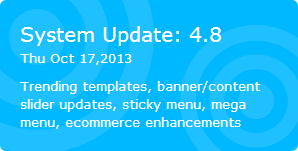
 Site Builder (CoolTools) System Update 4.8 is coming soon or is already available (roll-out may take a bit of time to reach all customer websites). This update has some great new features, emphasizing general usability, blogs, menus, graphics, social networking, e-commerce and other improvements. As with all automatic updates, there is no extra charge for this upgrade.
 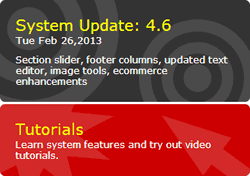 To find out your current Site Builder version number, log into your web hosting account and look at the right-hand side of the page for the "System Update" graphic, which shows the update number and installation date, along with a summary of the most recent features (the sample at right illustrates System Update 4.6).
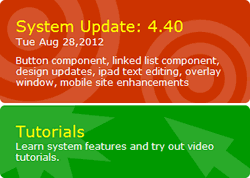 To find out your current Site Builder version number, log into your web hosting account and look at the right-hand side of the page for the "System Update" graphic, which shows the update number and installation date, along with a summary of the most recent features (the sample at right illustrates System Update version 4.40).